![shelterbuddy_logo.jpeg]](https://knowledgebase.petloyalty.co/hs-fs/hubfs/shelterbuddy_logo.jpeg?width=65&height=65&name=shelterbuddy_logo.jpeg)
The following process is done via the Edit Animal Details page. It adds a Vet Consultation for in-house practices where you do not need to track fees, which is best done via Costed Clinic Consultations. Through the Vet Consultation process, you can set Vet Reminders and link to Animal Care Requests.
- From the Edit Animal Details page, on the right-hand side of the screen, in the Animal Menu, click on the Medical Notes link. The Medical Notes page will display.
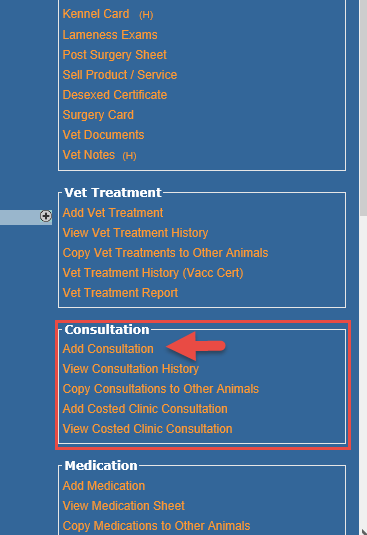
- On the right-hand side of the page, in the Consultation menu (found beneath the Vet Treatment Menu) click on the Add Consultation link.
- The Add Consultation page will appear.
- Complete the following:
- Consultation Date: click on the Calendar Icon to select the date the consultation took place. ill default to today.
- Shelter Vet Name: click on the down arrow to select the name of the vet that performed the consultation.
- Reason (1) for Consultation: click on the down arrow to select the primary reason for the consultation.
- *(History): If the animal has been seen before, you can click to view consultation reason history.
- Reason (2) for Consultation: click on the down arrow to select a secondary reason for consultation, if applicable.
- *(History): If the animal has been seen before, you can click to view the secondary reason for consultation history.
- Diagnosis: This is a multi-select optional field. If required, click on the diagnosis from the box. To select more than one, hold down the Ctrl key while you click options.
- Differential Diagnosis: This is a multi-select optional field. If required, click on the differential diagnosis from the box. To select more than one, hold down the Ctrl key while you click options.
- Evaluation Category: If your site uses Asilomar or Maddie's Fund, you can adjust the Evaluation Category from here. Click the down arrow to select. *(History): Click to see the animal's evaluation category history.
- Condition: To be used in conjunction with Evaluation Category. Click to select or hold down Ctrl and click to select multiple options.
- Animal Care Staff Comments: Enter any applicable information presented by staff members regarding this animal.
- Weight: Enter the animal’s weight taken during the consultation. *(History): If the animal has been seen before, you can click to view the weight history.
- Date of Weighing: Click on the Calendar Icon to select the date the weight was taken.
- Temperature: enter the animal’s temperature taken during the consultation. *(History): if the animal has been seen before, you can click to view the temperature history.
- Date of Temperature: click on the Calendar Icon to select the date the temperature was taken.
- Add Consultation Notes:
- When you first open a consult, the Vet Notes area will be inert.
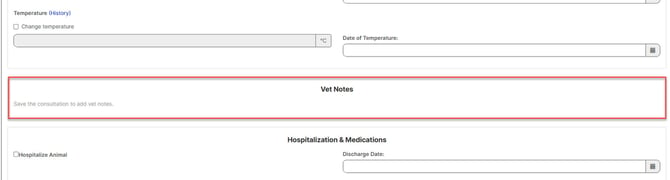
- Save the consult first to activate the links. This is to ensure you don't spend time adding notes, then forget to save the consult and lose them all.
- Once saved, the Add Consultation Notes link will activate:
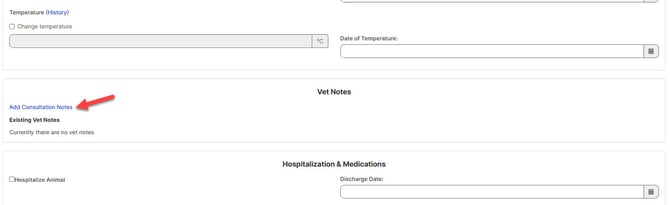
- Click the link to enter any pertinent notes regarding the consultation. Existing notes will display beneath this link for easy reference.
- Click [Submit]
- This will save the note AND the consult, to ensure you don't lose your work.
- When you first open a consult, the Vet Notes area will be inert.
Hospitalize Animal: check the box if the animal is hospitalised.
-
- Discharge Date: click on the Calendar Icon to select the date the animal was released after being hospitalised, if applicable.
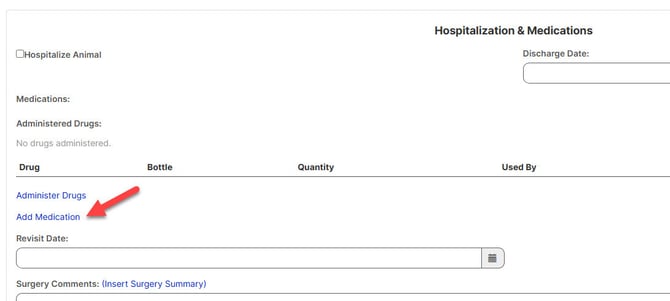
- Add Medication: This link will only show AFTER the consult is saved. If medication was given to the animal, click the link to document it. This generates an additional pop-up window.
- Number of Medications: enter the number of medications that will be given to the animal.
- Click Show Medications.
- Medication Required: click on the down arrow to select the medication that is to be given to the animal.
- Medication Frequency: enter the number of times the animal is to receive the medication per day and the quantity. EX: 3mls 2 x D, Am/Pm
- Start Date: click on the Calendar Icon to select the start date of the medication.
- End Date: click on the Calendar Icon to select the end date of the medication. If the medication is only to be given once, enter the same date as the Start Date.
- Click Add Medication; the pop-up window will disappear.
- Add Drugs: As with Add Medication, this link will only be made available AFTER the consult has been saved.
- Follow the normal procedure to enter drugs through this link.
- Vet Reminder: Enter notes the vet will need regarding the animal's revisit.
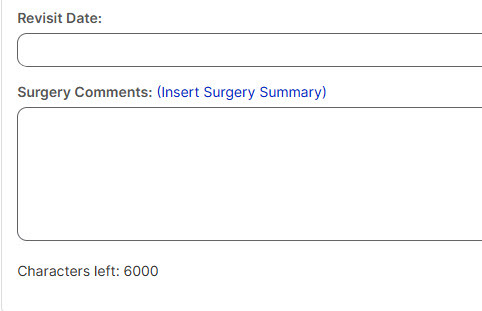
- Revisit Date: Click on the Calendar Icon to nominate a date the animal should be revisited if required. Best used in conjunction with the Vet Reminder Date.
- Surgery Comments: Information pertinent to any surgeries can be recorded in this free text field. Template options for this field are available in the link just above it. Click Insert Surgery Summary and from the pop-up, select Add against the required template option and the text will auto-copy to the Surgery Comments field.
- Reminder Category: Can be used to nominate who the reminder is for if your veterinary team is divided by responsibilities. For example, the reminder can be set for a Vet Technician rather than a Veterinarian.
- Vet Reminder: Add notes on what the relevant veterinary team is to be reminded of.
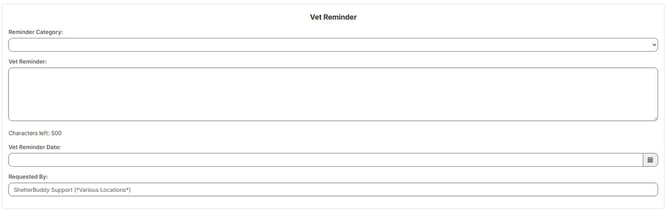
- Vet Reminder Date: Click on the Calendar Icon to select the date the vet will be reminded, usually the date before the revisit.
- Consultation Finalised: Click this box if the requirements for this consultation have been met.
- Click Add Details.
Once finalised, options to add a Follow Up will appear. Follow-ups can be used to mark the circumstance whereby an animal received a consultation and was diagnosed and treated for a condition, but its progress needs to be monitored through subsequent consultations.
To set a Follow-up: There are two ways to add a follow-up.
- From Vet Consultation History, click the Create Follow-up link at the end of the original consult you want to follow up on.

- A new Consultation page will open. It will contain the same information at the original, except for the following:
- Assigned Veterinarian
- Diagnosis
- Vet Reminder
- Vet Reminder Date.
- You can simply click Update Details to set the follow-up reminder or add other notes as required.
- A new Consultation page will open. It will contain the same information at the original, except for the following:
- From the required original Consultation, click the link to Create follow-up consultation in the top left menu.
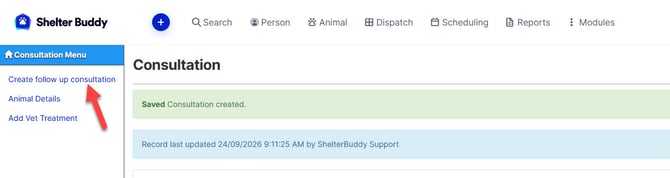
- A new Consultation page will open. It will contain the same information at the original, except for the following:
- Assigned Veterinarian
- Diagnosis
- Vet Reminder
- Vet Reminder Date.
- You can simply click Update Details to set the follow-up reminder or add other notes as required.
- A new Consultation page will open. It will contain the same information at the original, except for the following:
Reporting
Shelter Clinic Consultations (551): This report shows vet consultations over a selected time period with the diagnosis recorded. It also shows how many consults each vet is performing. It can be filtered in various ways to pinpoint specific requirements.
Vet Reminder Report (96): This report is used to track Vet Reminders and Follow-Ups set up via consultations and Animal Care Requests added by non-veterinary staff or Vet Techs. It includes active links so additional consultations can be added directly from the report to save users time.