![shelterbuddy_logo.jpeg]](https://knowledgebase.petloyalty.co/hs-fs/hubfs/shelterbuddy_logo.jpeg?width=65&height=65&name=shelterbuddy_logo.jpeg)
Important: some of these documents are NOT available via Templated Documents. If you would like a document to appear with your print string, but aren't sure how to set up the verbiage, please contact support@petloyalty.co.
Not all documents are eligible to link to all forms even if they show. For example, forms that include a receipt name (Adoption,Stray,etc)are only compatible with that receipt type and will not show for others.
To link a form to your print string:
- Go into Admin > Receipt Admin
- Find the option Add forms to Print with Receipts
- From the drop-down at the top, select the Receipt type you'd like to link the forms to (e.g. Adoption, Stray, Reclaim, etc):
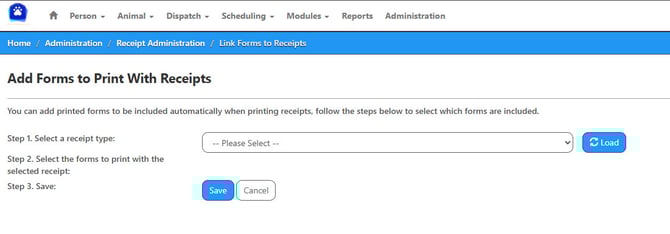
- Once the form is selected, click [Load] for the available forms to appear:
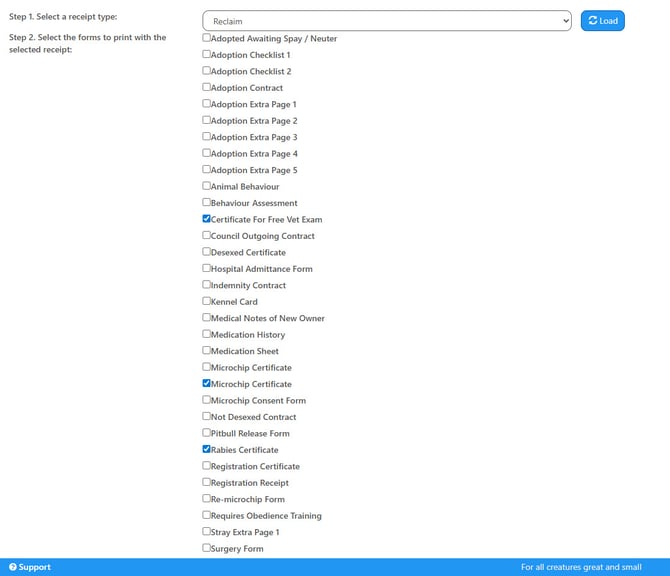
- Note: any form already selected to show with that document will automatically be ticked.
- Click any box to add the form
- Click [Save]
- The page will reload with a green {Success!} message at the top.
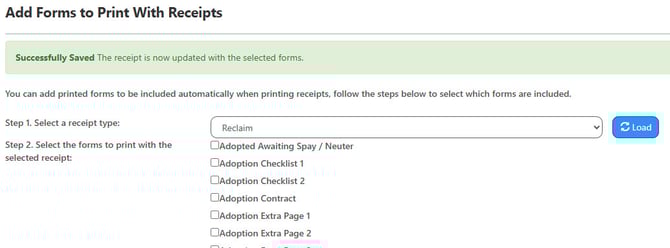
- Select another receipt/document and click [Load] to start again with a new document, or
- Click the breadcrumbs at the top of the page to return to Admin or Home.
It's as easy as that!
If you've added a form that is not availble for the document selected the print string simply won't show them, but it may show the text “Adoption, receipt, or animal record not found” at the very bottom of the page.
If you aren't sure why a form isn't showing after being flagged via the above process, feel free to contact support@petloyalty.co