![shelterbuddy_logo.jpeg]](https://knowledgebase.petloyalty.co/hs-fs/hubfs/shelterbuddy_logo.jpeg?width=65&height=65&name=shelterbuddy_logo.jpeg)

Initial Administrative Setup
This foundational setup must be completed by an administrator to enable HomeAgain functionality for all users.
A. Establish Your HomeAgain Account
-
Before any software setup, you must have a professional account with HomeAgain. This allows you to receive microchips and enroll pets. We will only need your HA Account Number to integrate with ShelterBuddy
-
Your software has an exclusive, automatic upload integration with HomeAgain. This means only HomeAgain microchips can be automatically registered through the software.
-
Please contact HomeAgain for Account information or Creation. https://www.homeagain.com
B. Configure Administrative Settings in the Software (ShelterBuddy has to do step 1+ 2 in your backend)
Enable "Microchip After Adoption":
-
Navigate to Administration > Home Again Administration > Adoption Options.
-
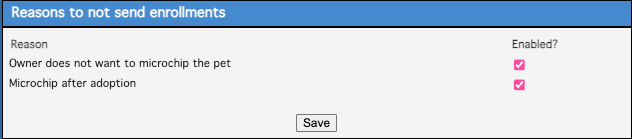
In the "Reasons to not send enrollments" section, check the box next to "Microchip after adoption" or "Owner does not want to microchip the pet."
-
For "Microchip after adoption" This allows a user to complete an adoption without an immediate microchip number, with the intention of adding it later.
C. Enrollment Options:
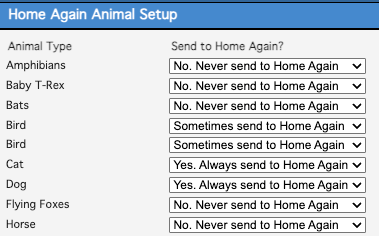
- Let ShelterBuddy know when to send Automatic Enrollments, and when not to send to HomeAgain. This step is based on Animal Type.
Process Setup
What areas or processes will your organization Microchip animals and send Auto Enrollments? Adoption - Reclaims - Agency Transfers - Microchip/Vet Clinics
1. Adoptions:
-
This is the primary way your software automatically registers microchips with HomeAgain.
-
For HomeAgain chips: When you finalize an adoption for a pet with a HomeAgain microchip, the software automatically sends an enrollment ("E" flag) to HomeAgain with the new adopter's information.
-
For non-HomeAgain chips: The automatic process does not work. These must be manually enrolled on the HomeAgain website or with their original microchip company.
2. Set Up Microchip Fees for Reclaims:
-
Your system can be configured to offer HomeAgain registration during a reclaim.
-
In the Reclaim Administration section, you can enable a microchip fee option for specific locations. This action enables a checkbox on the reclaim screen that users can select to flag the microchip for registration with HomeAgain.
Go to Administration > Reclaim Administration.
-
Click on the Microchip Fees link.
-
Check the box next to each Physical Location where you want to offer a microchip during a reclaim.
-
Enter a fee amount for each selected location. This action enables a microchip registration option on the reclaim page.

3. Create/Edit Agency Transfer Reasons:
-
Microchips can be registered to the new agency during a transfer.
-
In the administrative settings for Agency Transfer Reasons, you can check the "Send to Home Again" box for specific transfer reasons. When a user selects that reason, the microchip information is automatically sent to HomeAgain with the new agency's information.
Go to Administration > Edit Drop Down Lists. (This is disabled.)
-
-
-
Find Agency Transfer Reasons and click Edit.
-
For any reason that should automatically trigger a HomeAgain enrollment (e.g., "Rescue Partner Transfer"), check the box under the "Send to Home Again" column.
-
-
HomeAgain Reports
There are two main types of reports related to HomeAgain within your software system:
-
Transfer History Report:
-
Purpose: This report allows you to view the status of all microchip enrollment transfers sent from your software to HomeAgain.
-
Location: You can find this report at Administration > Home again transfer administration > Transfer History.
-
Functionality: This report will show you which transfers were successful and which ones failed. You can also filter this report to only show errors, which is useful for troubleshooting.
-
-
Microchipped Animal Report:
-
Purpose: This report, though not exclusively for HomeAgain, is a critical tool for managing all microchips, especially non-HomeAgain ones.
-
Report Number: Report 379
-
Functionality: This report provides a detailed list of all microchipped animals in your system. You can export this report to an Excel spreadsheet. This is the official and most efficient way to get a list of non-HomeAgain chips that need to be manually registered with their respective companies.
-