![shelterbuddy_logo.jpeg]](https://knowledgebase.petloyalty.co/hs-fs/hubfs/shelterbuddy_logo.jpeg?width=65&height=65&name=shelterbuddy_logo.jpeg)
Phase 1: Foundational Setup
These are the core steps to get your online licensing portal operational.
(ShelterBuddy has to do step 1 & 2)
- Select a Payment Gateway First, you will need to choose and configure one of the available payment gateways.
- Send over Login Contract This contract contains the terms and conditions that users must agree to before they can log into the site.
Client will do the following:
Admins:
- Add an Administrator Add yourself and any other staff members who will need administrative access to the online licensing site.
- Go to Licensing in the top Main Menu, then Admin in the top menu.
- Click Administrators.
- Click in the box under the "Administrators" header and search for the staff member's name or email.
- Select their name to add them.
License Fees:
How to Set Up when a license will be issued outside of Online Licensing, such as adoption, redemption, returned stray.
-
Navigate to Administration > License Administration.
-
Select the Registration Page Display Criteria function. A pop-up will appear.
-
Choose the Jurisdiction (or Group) and Animal Type from the dropdown menus.
-
Check the appropriate box to specify which process should include the licensing details:
-
Adoption: Check this box if the licensing process should be available for adoptions by people in that jurisdiction.
-
Reclaimed: Check this box if the licensing process should be available when a person in that jurisdiction reclaims an animal.
-
Agency Outgoing: Check this box to include the licensing process for animals leaving your agency.
-
Important Notes
-
This setting applies to all people with the selected jurisdiction in their record. It is essential to ensure that person records are updated with their correct jurisdiction before using these processes.
-
You must repeat this process for each combination of Jurisdiction and Animal Type (e.g., both "Dog" and "Puppy") if you want the rule to apply to all ages.
-
If you have license fees set up only for the adult animal types (e.g., Cat, Dog), these fees will also apply to the baby types (e.g., Kitten, Puppy) if you have them flagged in this display criteria.
You must have a GL Code in place first that will pertain to your License Fees. How to add GL Codes to your ShelterBuddy Site.
-
-
Navigate to the fee setup page by going to Administration > License Administration > License Fee Set Up.
-
Click the +Add button.
-
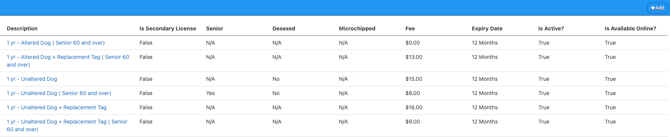
On the new page, enter the required details, including a Description for the fee and the Fee amount.
-Make the description as detailed as possible, so you can see exactly what license they have purchased, when you go to approve the license. E.g. (1 yr-Unaltered Dog -Sr Rate 60+ or 12 Months Annual License Dog - Sterilized/Microchipped

-
Specify the Issuing Authority and Animal Type to which the fee applies.
-
Set any additional filtering criteria, such as Senior Fee, Desexed, or Microchipped.
-It is very important that you choose YES or NO, and not to leave any as N/A if they will count towards an exception.
-
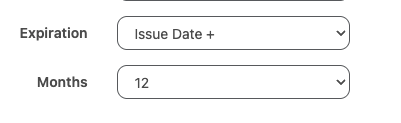
Define the Expiration terms for the license.
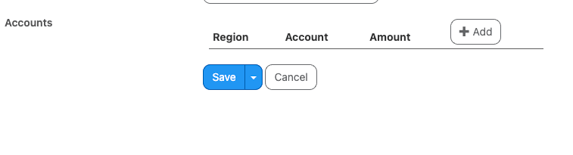
- Next, add your Account information. Scroll down to Accounts and click +ADD
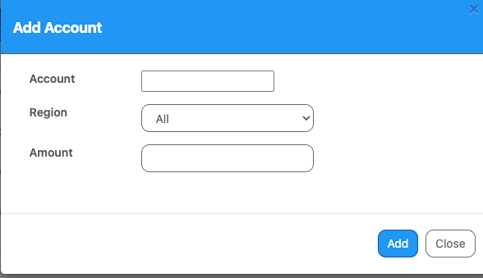
- Add Account, begin to type in the GL Code for that license, and it will auto-populate the Code, pick the Region, and the amount. Click Add when you are done.
-
Click Save or one of the other save options to complete the process.
-
Phase 2: Configure Your Site and Automations
Once the basic framework is in place, you can customize the public-facing site and set up automated features.
- Customize the Landing Page and Menu Add a welcome message and custom links to your public-facing portal.
- Go to Administration, click Site Customizations, then select Landing Page.
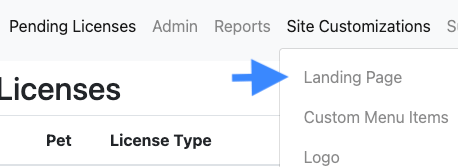
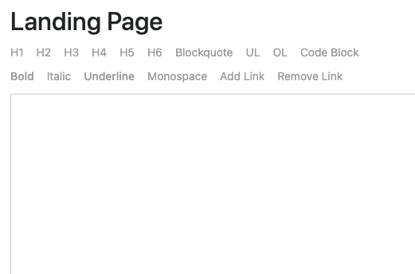
- Type your custom message into the text box and click Save. You will have to use plain text in this box, do not copy and paste from Word or Google. Notepad or Text Editor only.
- For custom links, select Custom Menu Items from the Site Customizations menu.
- Click +Add Menu Item, enter a Text name and the URL, and click Save.
-This area can lead back to any url's that you choose. Adoption Pet Listing, Donations, Volunteer Sign Up, Vet Clinics, and of course your actual Online Licensing Public Sign- In Page.
- Set Up Email Notifications Configure the system to send automated renewal and expiry notices to customers. ( You will need domain or email validation setup for this to work.)
- A. Renewal Email Setup:
- Go to Licensing -> Admin -> Renewal Email Setup.
- Click the Enabled switch.
- Enter a From Email and at least one Reminder Period (e.g., enter "14" for two weeks before expiry).
- Click Save.
- B. Expiry Notice Setup:
- Go to Licensing -> Admin -> Expiry Notice Email Setup.
- Click the Enabled switch.
- Enter a From Email and the number of days Send After expiry.
- Click Save.
- C. Manage Email Templates:
- Go to Licensing -> Admin -> Email Template.
- Select the template you wish to update (e.g., Renewal Email Template or Expiry Notice Email Template).
- Use the Subject and Body fields to create your message, using auto-fill options and "Repeating groups" for personalized information.
- Click Preview and then Save.
- Configure Late Fees This is a two-part process to set up late fees for renewals.
- A. GL Code Setup:
- Go to Administration -> License Administration -> Additional Licensing Fee Accounts.
- Select a location or jurisdiction, choose a GL Code for late fees, and click Update Details.
- B. Online Configuration:
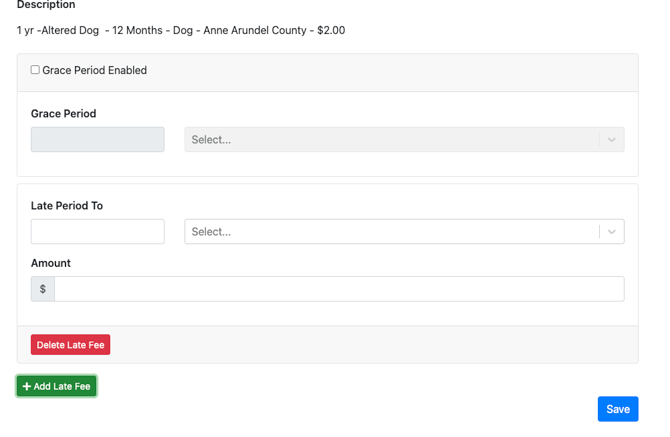
- Go to Licensing -> Admin -> License Fees.
- Click on a license to edit it.
- Click +Add Late Fee, enter a Late Period To (e.g., number of days) and the Amount.
- Click Save.
- Set Up a Donation Receipt Template Create a custom receipt for donations, and ensure it is enabled for PDF generation.
- A. Create the Template:
- Go to Administration -> Templated Documents -> Receipts.
- Click +Create.
- Set the "Receipt Category" to Donation and design the body of the receipt.
- Click Save.
- B. Enable PDF Generation:
- Go to Administration -> Receipt Administration -> PDF Document Generation Administration.
- Check the box for Donation and click Save Generation Options.
Phase 3: Administrative Functions
Once the setup is complete, you can begin processing applications and managing your data.
- Processing Applications: All online applications will appear under Licensing -> Pending Licenses. You can click on an application to review the details, match it to an existing record or create a new one, and then either approve or reject it.
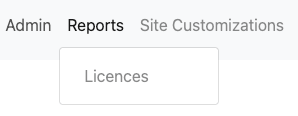
-This is why you setup the email templates in an earlier step. - Reporting: The License Report under Licensing provides an overview of all license applications based on various filters and sorting options. You can export the results to Excel.
Phase 4: Renewals & Reporting
You cannot send license renewals directly from Shelter Buddy unless you have the Online Licensing module.
To mail physical letters, you must generate a report and then print the letters. Here's how to do it:
Step 1: Generate the Renewal Report
-
Go to the Reports link in the top Main Menu.
-
Select the License link.
-
Choose the report titled “License Renewal (Your site initials will appear here)” and click Open
-
Apply the desired filters for Letter Format/Physical Location, Expiry Date Range, and Issuing Authority.
-
Set Generate to "Letter" and choose your preferred format (e.g., report, letter, postcard).
Click Generate Report, enter your email, and click Generate Letters.
After printing the letters, you must flag them in the system to prevent them from being regenerated.
-
Go to Administration > License Administration > Flag License Letters as sent
-
Fill in the same filters you used for the report.
Alternative Method: Using an External Service
If you want to send email reminders but don't have the Online Licensing module, you can export the data to a third-party email service.
-
Run the License Renewal Report (262) and export the results to an Excel spreadsheet.
-
Use a service like Mailchimp to import the contact information from the spreadsheet. You can then use merge tags to create personalized emails.
Phase 5: User and Account Issues
-
-
Generic Error Messages: An application cannot be merged due to a generic error message. This can be caused by changes to the animal's record or the license's settings after the customer applied. For example, a license may have been deactivated or unlinked from a GL code.
- Can not Merge License Error: This typically happens when a member of the public tried to order a license that does not match what they have provided. Examples: Not S/N, but tried to purchase an altered license, Not over 65 year old, but they purchased a Senior License. Etc. This is where having the full description of the license type, and your email templates setup will all come in BIG handy!
-
Login Failure After Email Change: A customer changes their email address but then can't log in with either the old or new one. This happens because they never verified the original email address. The solution is to have them log in with their old password, which prompts them to verify the unverified email.
-
Duplicate Records: A customer creates a new record for a pet they've previously licensed, or they create multiple online profiles for themselves. This leads to merging errors, as the system can only link one online record to a single Shelter Buddy record. The resolution is often to block the duplicate record and instruct the customer to use their original profile.
-
Ineligibility for License: The customer cannot find a license type in the dropdown or sees an incorrect fee. This is often because they don't meet the eligibility requirements (e.g., their pet's spay/neuter status doesn't match the license type) or because the system is defaulting to their previous license and they must manually select a new one.
-
-
- License Type Not Found: An error states that the "license type with id... could not be found." This is usually due to the applicant no longer meeting the criteria for that license, as they may have changed a detail on their pet's profile after completing the application.
- Broken Record Links: An error message appears stating that a record cannot be found. This happens when duplicate records were previously merged in the backend but the link to the online system was not also merged, leaving a "broken" link. The solution involves having an engineer unlink the record.
- Browser Plug-ins: On rare occasions, a user's browser plug-ins may interfere with the dropdown menus, preventing them from seeing or selecting license options. The solution is to have the customer try again using their browser's incognito or private mode.