![shelterbuddy_logo.jpeg]](https://knowledgebase.petloyalty.co/hs-fs/hubfs/shelterbuddy_logo.jpeg?width=65&height=65&name=shelterbuddy_logo.jpeg)
This feature allows you to set or modify templates for your Pet Portfolio, so you can customise them to your own needs.
- From the nav bar, click the Administration link in the Modules menu.
- Use the search feature to find and click on Templated Documents Administration.
- From the Templated Documents Administration menu, click on the link Animal Forms (Printed)
- The Pet Portfolio (Default) will already be there and will contain the standard settings for a Pet Portfolio.
Edit an existing document
- Click on the Edit button for the template you wish to edit.
- Once the new page loads, you can make any necessary changes using the drop-down options, text fields, and placeholders. Place-holders will be the same as for other Animal Forms (Printed) Templates.
- Be aware that the place-holder for the animal's Image looks like [The]. You can amend the size of this by clicking on [The] symbol to highlight the picture icon in the menu and change the Width and Height if desired.
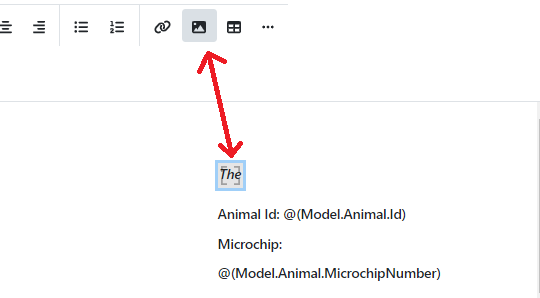
- Be mindful that if you change both, some images may appear distorted if not all your images are exactly the same shape (e.g., if some are tall and narrow, others are square, etc.). For best results, clear the Width and only add metrics to the Height field.
- The Pet Portfolio has a few other unique place-holders intended for use with this feature:
- The Animal Adoption Summary: This placeholder inserts the text from the Adoption Summary into the Pet Portfolio. Please note that currently, formatting for the Adoption Summary is not available for this feature, even if added directly to the Adoption Summary text as HTML. This is something we hope to improve in the future.
- Print a label of the 'Adoption Fee' with the adoption dollar amount. This option displays the adoption price as a dollar amount, regardless of whether the Adoption Fee Group or the Adoption Fee text box is used.
- Print a label of 'Adoption Fee' with the adoption fee name: This will display the Adoption Fee Group name as seen in the drop-down applied to the Animal Details page. NOTE: If an amount is added in the Adoption Amount text box, this field will not show at all.
- Print a label of 'Available' with the available for adoption date: This field is found on the Animal Details page
- Animal Icons are available to be displayed as a Collection. Only those selected for that animal will display.
- When applying a collection, remember to click Add Collection FIRST, in the location you would like to see the icons, and then enter the placeholder(s) into the red outlined box that this provides.
- When your changes are complete, click Save or click Cancel to discard and return to the menu.
Create a new template:
- Click on the +Create button
- Location: Click on the down arrow to select a Physical Location if the template is specific to just one. Otherwise, you may leave it altogether.
- If you would like the template to be the default for the selected location, click the box Default for location to mark it.
- Description: This free text field allows you to add a name to your template, enabling it to be identified by other users or for future use. For example, if the template is for a specific location, it might be titled "Campus A Consultation History".
- Type: Defaults to Animal Form (Printed). Leave as-is.
- Category: click on the down arrow to select if the template is for a Microchip Disclosure Letter or a Pit Bull Release form.
- Animal Types: click on the down arrow to select the Animal Type(s) this document relates to.
- Language: (may not be available on all sites) - For sites that need to work with multiple languages, this drop-down indicates the language the template is set in. It does not translate text. If multiple language versions of a form are available, a drop-down will appear at the top of the page when the form is generated, so you can select which language version you would like before you print.
- Body: Place your cursor in the text field to activate the drop-down. You can either simply type into this field if the information is to be static, or if you would like it to auto-fill specific information for each client, click on the down arrow from the drop-down to find available placeholders. Click on a place-holder to insert it into the subject field, and do not change the place-holder text once there. This text will be replaced with custom information for each client.
- When your changes are complete, click Save or click Cancel to discard and return to the menu.
- Once saved, the Templated Documents/Animal Form (Printed) menu will display. Your new template will be visible in the list.
Delete an existing document - DO NOT USE THIS IF THERE IS ONLY ONE VERSION OF THIS FORM!
- Click on the Delete button for the template you wish to remove.
- A dialogue warning will appear to ask if you're sure you wish to delete the document. Click Yes.
- The template will be removed.