![shelterbuddy_logo.jpeg]](https://knowledgebase.petloyalty.co/hs-fs/hubfs/shelterbuddy_logo.jpeg?width=65&height=65&name=shelterbuddy_logo.jpeg)
Storing images and documents on Shelter Buddy has never been easier!
For simplicity's sake, we will use and Animal file as an example but now ALL photo/document managers operate the same way - including those linked to Person and Dispatch files.
To upload a new photo simply navigate to the file you need and click the Photo/Document Manager link.
A modal will open that overlays your page with a screen like this:
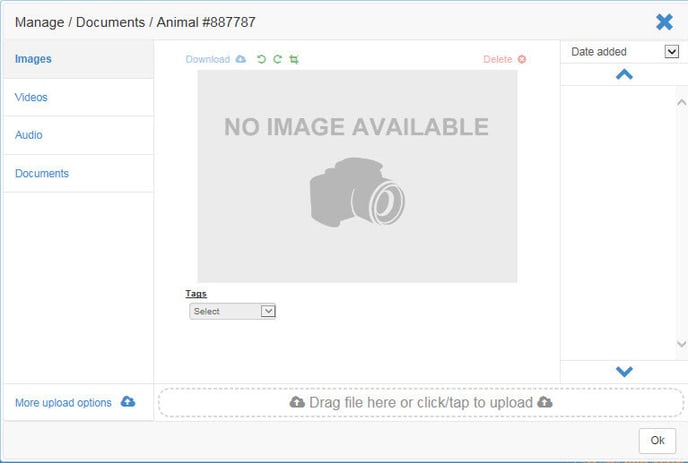
To upload photos or other items, simply click or tap your mouse cursor into the upload bar it will automatically open your folders for you to select photos from, just as before, except now you can select and upload multiple photos at one time.
Alternately, click to highlight them in your folder (hold Ctrl and click for multiple items) and then drag the selected images onto the Drag file here or click/tap to upload bar until the bar goes green:
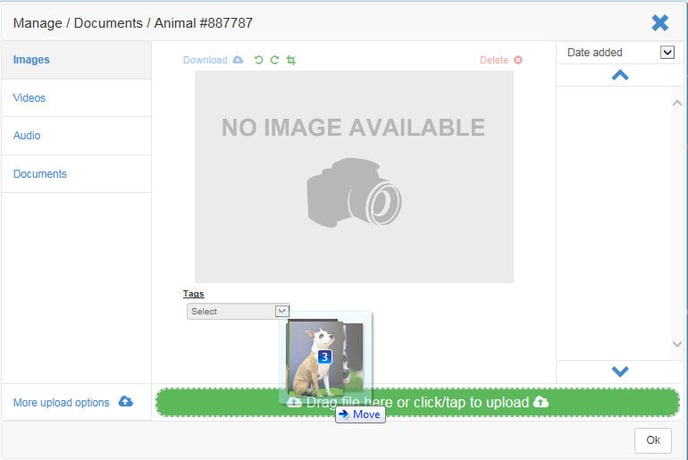
Release the cursor and all selected photos will simultaneously upload:
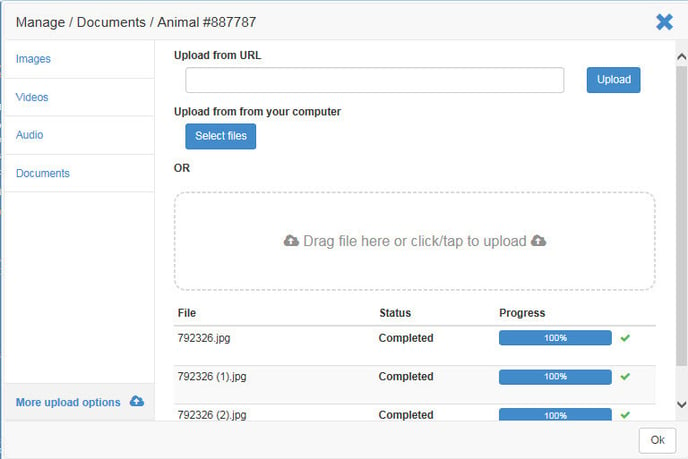
Click the link in the top left that says Images to view the selected image and all other images uploaded:
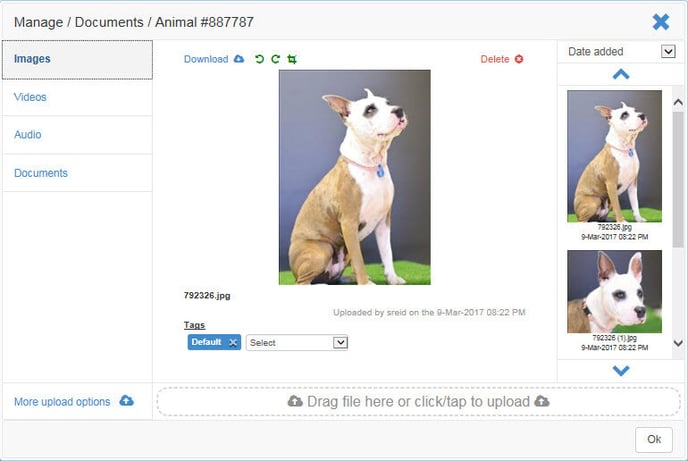
To amend the default photo, simply select the photo you would like from the right-hand bar by clicking on it, then use the drop down to select the Default tag:
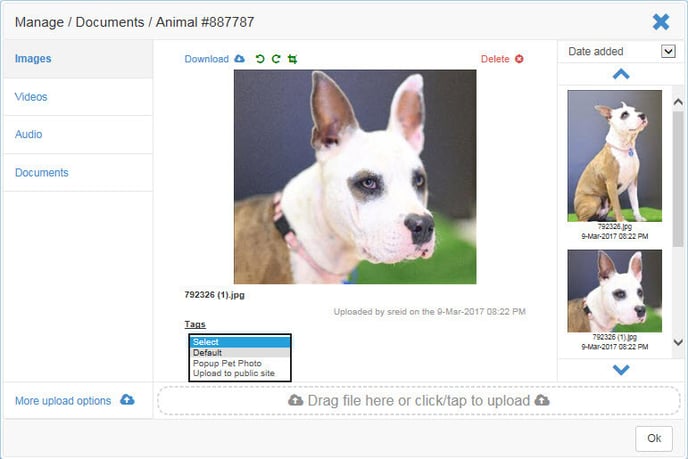
Thit will automatically tag this photo as the default photo, and remove the default tag on the previous photo.
Note you can also tag photos for Popup Pet Photos (if enabled) and Upload to Public Site (if applicable).
To edit a photo use the icons above the photo currently displayed in the centre. Hover your mouse over each icon to see what it does.
Select Rotate Left or Rotate Right to correct the orientation of an image or use the crop tool the tighten the image. When selected, the crop tool will notify you cropping is in progress with a red warning message at the top. NOTE: you won't be able to close the modal if you are editing a photo.
As your mouse comes into contact with the selected photo it will change from a pointer to a cross, indicating it is ready to crop. Use the cross to highlight a section of the image you would like to keep:
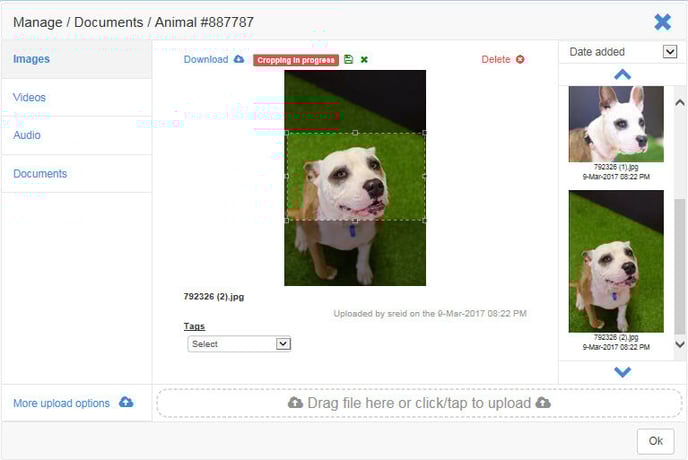
When you are happy with your selection, click the Save icon next to the Cropping in Progress message. To start again, click the little green cross instead.
To remove a photo at any time, click Delete. If the photo you are removing is the Default, the Default tag will automatically move to the next photo uploaded.
To scroll through uploaded images, use the up and down arrows at either end of the list display of photos on the right or simply move the scroll bar up and down to see different images:
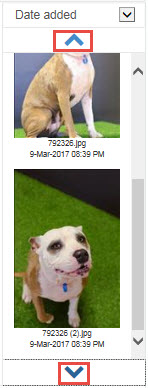
Additionally, you can sort by the date the image was added or the file name using the drop down directly above to make it easier to locate items.
Once you are happy with your changes, simply click OK and the modal will close, upload the default photo to the file display (where applicable) and save your changes.
Uploading other file types works just the same way, provided it is a file type allowed by your site settings.
When uploading non-image files, to the Doc. Library, for example, the resulting documents will be ordered by Type as the default (e.g. PDF, Word, Excel etc.) and by Date Added. However, there is an option to amend the way they are sorted by Name (Title) instead:
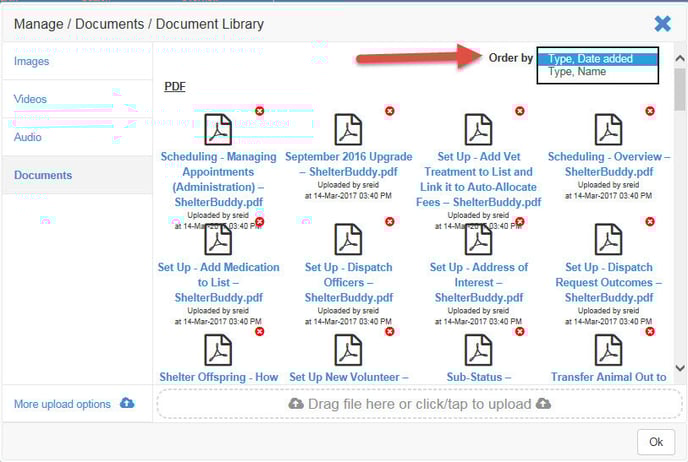
To download files from a Document Library (any document library), simply hover your mouse pointer either over the icon for the file until it changes to a download icon and click:
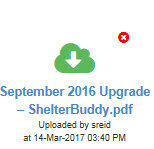 OR
OR
Hover your mouse pointer over the title of the document until it is underlined and click:
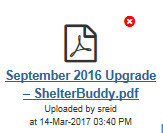
Either of these methods will download the document so it can be opened and viewed. To delete a document, simply click on the red cross icon at the top right of each document icon, then click Delete to confirm or Cancel to return to the document modal.
To change allowable file types for your site, contact support@shelterbuddy.com